Create a handwriting font for a pen plotter
Prepare pen paths from your handwriting. Export SVG fonts for Horus and Inkscape/Hershey Text, SHX for LightBurn or a finished SVG/PDF page.
Start with letters, then inspect the paths
Draw directly when the order of pen strokes matters. Supported drawings can retain original strokes. Scans and imported outlines require centreline reconstruction, which can add branches, gaps or extra lifts.
Use a clear, evenly lit template or individual letter images. Include accents, punctuation and every character in your planned text. Align the baseline and inspect spacing with real words.
Build an up-to-date font, open the plotter panel and prepare its separate pen version. Review problematic glyphs and their trajectories before exporting. The ordinary font remains a separate result.
Choose the result you need
| Result | What it contains | What to check |
|---|---|---|
| TTF font | Your ordinary digital font for compatible desktop applications. | Filled outlines are not automatically single-line pen paths. |
| SVG font — Horus profile | A character table with paths, advances and the metadata required by the tested Horus 4.4 Offline importer. | Convert it to Gfont in Horus. This export does not carry the full OpenType shaping model. |
| SVG font — Hershey profile | An SVG-font character table for software that supports that format. | Compatibility depends on the importer and version; it is not a universal plotter format. |
| Finished SVG or PDF page | A fixed layout of the text prepared in the plotter panel, using the selected glyphs and positions. | Import at the intended scale and check bounds, paths and pen lifts. It is a drawing, not an installable font. |
| SHX · LightBurn | Base characters and advance widths for typing text in LightBurn. Curves are approximated by line segments. | Supports individual BMP characters. Emoji and Unicode sequences are rejected; very small strokes or overly complex glyphs may require SVG/PDF instead. |
| CXF · QCAD | CXF/LFF use individual BMP characters and approximate curves with line segments. CAD applications calculate spacing from glyph geometry and shared settings; original advances, kerning and ligatures are not preserved. Use a finished SVG/PDF page for exact layout. | Check letters, spacing and scale. To inspect glyphs, open the CXF with File → Open. Then open View → Block List and double-click a character block; the main drawing can be empty. |
| LFF · LibreCAD | CXF/LFF use individual BMP characters and approximate curves with line segments. CAD applications calculate spacing from glyph geometry and shared settings; original advances, kerning and ligatures are not preserved. Use a finished SVG/PDF page for exact layout. | Choose the font in the Text tool and check letters, spacing and scale. Custom fonts may appear at the end of the list. |
| DXF | DXF contains the finished drawing in millimetres, with curves approximated to 0.01 mm. Import at 100% using millimetres; check scale and paths in the target program. | CXF import and glyph viewing were checked in QCAD; text with seven site-created LFF fonts was checked in LibreCAD. Format and geometry also have automated checks. Physical output has not been tested. |
Use your font in another application
Inkscape / Hershey Text ↗
- Download the SVG font for Hershey Text in pen mode. In Inkscape, create a normal text object.
- Open Extensions → Text → Hershey Text. Choose Other (given below), enter the full SVG-font path in Name/Path and click Apply.
- Check accented letters, spaces and scale. Save the converted paths as SVG for your plotting software. Keep a copy of the original editable text.
Text conversion was checked with the actual Hershey Text 3.0.8 extension, without the Inkscape interface. This does not verify physical plotting.
LightBurn / SHX ↗
- Download the SHX font in pen mode and save it in a dedicated fonts folder.
- In LightBurn, open Settings → Editor Settings → Set SHX Font Path and select that folder, not the file. Older versions may place this under File Settings.
- Create text, select your SHX font and use Line mode. Check letters, spacing and dimensions in Preview before a small device test.
SHX geometry and spacing were checked with an independent reader. Import in the LightBurn interface and physical output have not been verified.
QCAD / CXF ↗
- Save the CXF in the fonts folder of your QCAD installation.
- Restart QCAD, open Draw → Text and choose the font.
- Check letters, spacing and scale. To inspect glyphs, open the CXF with File → Open. Then open View → Block List and double-click a character block; the main drawing can be empty.
CXF import and glyph viewing were checked in QCAD; text with seven site-created LFF fonts was checked in LibreCAD. Format and geometry also have automated checks. Physical output has not been tested.
LibreCAD / LFF ↗
- Save the LFF in a separate folder.
- In LibreCAD, add the folder under Options → Application Preferences → Paths → Fonts and restart.
- Choose the font in the Text tool and check letters, spacing and scale. Custom fonts may appear at the end of the list.
CXF import and glyph viewing were checked in QCAD; text with seven site-created LFF fonts was checked in LibreCAD. Format and geometry also have automated checks. Physical output has not been tested.
CorelDRAW ↗
- Download the finished SVG drawing and import it in CorelDRAW at its original size.
- The letters are paths, so no font installation is required. For editable typed text, use the separate ordinary TTF font.
- For a pen, inspect open strokes without fill. For cutting, prepare closed contours separately and use the plugin for your cutter, such as PlotCalc or Cutting Master.
Export geometry is checked automatically. Import in this program and physical output have not been tested.
Handwriting for CorelDRAW →GRBL-Plotter ↗
- Download the finished SVG or DXF drawing and open it in GRBL-Plotter.
- Keep millimetres and the page size. Configure pen up/down for your Z axis or compatible servo firmware.
- Inspect the G-code preview, stroke order and travel with the pen raised. Check Cyrillic letters, dots and accents on the ten-character sample.
Export geometry is checked automatically. Import in this program and physical output have not been tested.
Handwriting for GRBL-Plotter →Silhouette Studio ↗
- Download DXF for Silhouette Studio Basic. SVG import requires Designer Edition or above.
- Open the drawing and check its physical size. The letters are paths; this file is not an installable font.
- For a pen, choose the appropriate sketch action and check that each stroke is drawn once. Cutting requires a separate closed-outline design.
Export geometry is checked automatically. Import in this program and physical output have not been tested.
Handwriting for Silhouette Studio →Candle ↗
- Choose the pen mechanism and enter tested positions, speeds and settling time, then download G-code.
- Open the G-code file in Candle. Check the preview, page dimensions and the G54 work origin at the lower-left corner.
- Confirm pen lifts with a short test on your device. This is a pen job; do not use the servo profile as a laser job.
Export geometry is checked automatically. Import in this program and physical output have not been tested.
Handwriting for Candle →LaserGRBL ↗
- Choose the pen mechanism and enter tested positions, speeds and settling time, then download G-code.
- Open the G-code file in LaserGRBL. Check the preview, page dimensions and the G54 work origin at the lower-left corner.
- Confirm pen lifts with a short test on your device. This is a pen job; do not use the servo profile as a laser job.
Export geometry is checked automatically. Import in this program and physical output have not been tested.
Handwriting for LaserGRBL →KDraw (Kvenjoy) ↗
- Download the finished SVG text drawing from the plotter panel or the MaximKing example.
- In KDraw (Kvenjoy / 奎享), choose the SVG vector drawing mode and open the file. Check the width, height, scale and pen paths before plotting.
- The SVG contains positioned letter paths and is not an installable font. Direct Gfont export is not available; loading a font for editable text in KDraw has not been tested.
Export geometry is checked automatically. Import in this program and physical output have not been tested.
Handwriting for KDraw (Kvenjoy) →Path demonstration
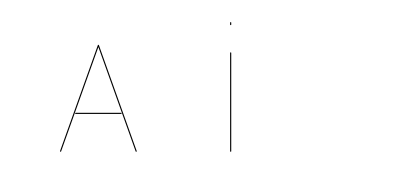
Synthetic two-letter demonstration, not a photograph or a physical plotter result. These sample downloads are not your font.

MaximKing
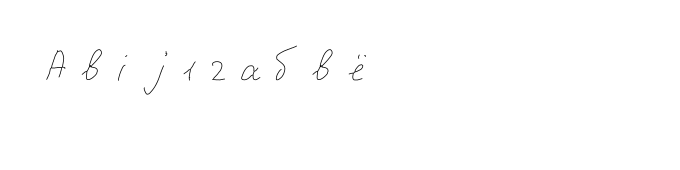
MaximKing example: 10 characters (Abij12абвё). Choose a font for your program or a finished SVG/PDF/DXF drawing; the ZIP includes all formats and instructions in your language. The sample does not contain the full font.
Download the finished SVG or DXF drawing and open it in GRBL-Plotter. Keep millimetres and the page size. Configure pen up/down for your Z axis or compatible servo firmware. Inspect the G-code preview, stroke order and travel with the pen raised. Check Cyrillic letters, dots and accents on the ten-character sample.
Export geometry is checked automatically. Import in this program and physical output have not been tested.
G-code is included in the ZIP only after selecting Candle or LaserGRBL and completing the pen settings.
Compatibility has boundaries
- Pen mode uses original or reconstructed centre paths. Outline mode follows the edges of a shape and can draw two sides of a stroke. An outline export must not be described as single-line.
- The SVG-font export contains base character paths and advances, not the full rules for alternates, ligatures, connections or pair kerning. The Gfont conversion must not be assumed to preserve those rules.
- The Horus profile rejects characters that the tested importer cannot represent as one BMP character, including emoji and multi-character ligatures.
- A finished SVG page preserves the geometry produced by the selected shaping settings, including generated connections when present in that result. It does not preserve editable font rules or guarantee one uninterrupted pen stroke.
- The plotter panel prepares one page and up to 2,000 characters; page overflow and missing characters must be fixed. Test a short line on your actual device before a long job.
Before you export
Will it work with every plotter?
No. Check what your software imports, the supported font or drawing format, scale and pen movements. The Horus profile was tested with Horus 4.4 Offline; other versions need their own import test.
Will Gfont retain all my font settings?
Do not rely on it. This SVG-font export provides base forms and advances. Use a finished SVG page when you need the geometry of a particular shaped text.
Is this a free export?
Availability depends on the current plan and project limits. Check the pricing page and the export controls before preparing a large project.
Why are letters drawn twice?
Choose pen mode and inspect the paths. Outline mode follows both edges of a filled stroke. Imported contours may need centreline reconstruction and manual correction.
Why are Cyrillic letters or accents missing?
Check alphabet readiness, add missing characters and generate the current font and pen version. Font import also depends on the target program. Finished SVG/PDF/DXF pages contain the prepared letter geometry.
Why does spacing change after import?
Font exports do not carry all OpenType kerning, ligatures and connections. CXF/LFF use shared spacing settings. Export a finished SVG/PDF/DXF page to preserve the chosen positions and connections.
Explore more tools
Create your own handwriting font
- Your handwriting for a plotter: Horus, Inkscape and LightBurn
- Handwriting for CorelDRAW
- Handwriting for GRBL-Plotter
- Handwriting for Silhouette Studio
- Handwriting for Candle
- Handwriting for LaserGRBL
- Handwriting for KDraw (Kvenjoy)
- Create a TTF font from your handwriting
- How to make a font from your handwriting
- Create a font from photos of letters
- Draw your own font online
- Handwriting font template
- Ligatures for handwriting fonts
- Your handwriting font in Word